Modern knowledge workers spend an average of eight to twelve hours daily staring at digital displays. This constant visual engagement often leads to Computer Vision Syndrome (CVS), a collection of symptoms encompassing dry eyes, blurred vision, frontal headaches, and chronic cervical spine tension. While many users attribute eye fatigue solely to screen time, the primary culprit is often an uncalibrated display pushing excessive luminance, incorrect color temperature, and harsh contrast into a dimly lit workspace.
Configuring your monitor hardware and operating system display pipeline creates an ergonomic visual environment. By implementing precise white balance profiles, balanced gamma curves, and ambient-aware lighting, you can minimize optical fatigue and sustain comfortable visual focus during extended workstation sessions.
1. The Anatomy of Digital Eye Strain: Why Displays Cause Fatigue
Digital displays strain the human visual system through three distinct mechanical mechanisms:
-
Luminance Mismatch: When a monitor operates at 350 nits in a room illuminated to only 100 nits, the pupil must constrict when looking at the display and dilate when glancing at the desk surface. This continuous pupillary fluctuation triggers muscular strain around the iris.
-
Blue Light and Melatonin Disruption: High-energy visible (HEV) blue light, concentrated between 415nm and 455nm, scatters easily inside the eye, reducing visual contrast and forcing the ciliary muscles to work harder to maintain sharp focus.
-
Suppressed Blink Frequency: Humans normally blink approximately 15 to 20 times per minute. When concentrating on fine text or UI elements on a screen, the blink rate drops by over 60%, leaving the corneal surface exposed and causing tear film evaporation.
2. Hardware Calibration: Luminance, Contrast, and Color Space
Relying on factory monitor presets is a primary driver of eye fatigue. Factory defaults are tuned for brightly lit retail showrooms rather than productive office environments.
| Display Parameter | Typical Factory Preset | Ergonomic Target (Daytime) | Low-Light Target (Evening) |
| Brightness (Luminance) | 80% – 100% (250–350 cd/m²) | 35% – 50% (120–140 cd/m²) | 15% – 25% (80–100 cd/m²) |
| Contrast Ratio | Max dynamic contrast | Standard 70% – 75% | Standard 65% – 70% |
| Color Temperature | 7,500K – 9,300K (Cool Blue) | 6,500K (Standard D65) | 4,500K – 5,000K (Warm White) |
| Gamma Profile | Aggressive game curves | Standard Gamma 2.2 | Standard Gamma 2.2 / sRGB |

The White Sheet Paper Matching Test
An easy way to calibrate monitor brightness without specialized hardware colorimeters is the white paper test:
-
Hold a blank sheet of white printer paper directly next to your screen.
-
Open a plain white document (such as a blank text editor or web page) on your display.
-
Adjust the hardware brightness controls on your monitor until the digital white background matches the perceived brightness of the physical paper under ambient room lighting. If the display glows like a lightbulb against the paper, brightness is set too high.
3. Native Software Filters vs Specialized Blue Light Tools
Operating systems now bundle integrated blue light toggles, yet third-party applications deliver greater automation flexibility:
Windows Night Light vs macOS Night Shift
Both Windows Night Light and Apple Night Shift apply a software color overlay that warms RGB channel output.
-
Advantages: Integrated directly into the desktop shell without installing third-party background services.
-
Limitations: Limited scheduling triggers; often toggles abruptly at sunset, which can disrupt visual focus during active tasks.
Advanced Automation: f.lux
For users requiring fine-grained control, f.lux remains an effective display automation tool.
-
Geographical Solar Calculation: Transitions display color temperature smoothly over a 60-minute window aligned with your local sunset.
-
Expanded Spectrum Controls: Lowers color temperatures down to 1,900K (Candlelight) or 2,700K (Incandescent) for late-night typing, filtering harsh blue wavelengths while preserving black text legibility.
-
Color Accuracy Exceptions: Provides automated profile toggling that pauses color shifting whenever color-sensitive software (such as Photoshop or video editing suites) is brought into active focus.
4. Preventing Micro-Flicker: PWM Dimming vs DC Dimming
A subtle cause of eye strain is the backlight dimming mechanism inside flat-panel monitors:
-
Pulse Width Modulation (PWM): Budget monitors reduce screen brightness by rapidly pulsing the LED backlight on and off thousands of times per second. While imperceptible as an overt flicker, the visual cortex still detects these micro-strobes, leading to unexplained headaches and eye fatigue during long workdays.
-
DC (Direct Current) Dimming / Flicker-Free Certification: Flicker-free displays lower brightness by reducing direct electrical current to the LED diodes. The light remains continuous without strobe cycles.
When purchasing hardware for text-heavy productivity, verify that the monitor carries a verified TUV Rheinland Flicker-Free certification.
5. Ergonomic Desktop Workspace Adjustments
Software calibration must be paired with physical environmental ergonomics:
-
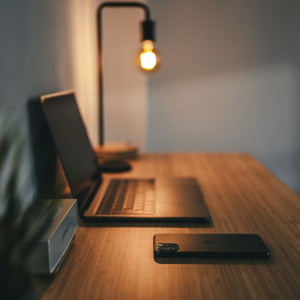
Deploy Neutral Bias Lighting: Place a 6,500K LED light bar or LED strip directly behind your monitor to illuminate the wall behind the screen. This elevates ambient background luminance, preventing your pupils from dilating when tracking off the monitor edge.
-
Follow the 20-20-20 Rule: Every 20 minutes of continuous screen focus, look away at an object at least 20 feet (6 meters) away for 20 seconds. This allows the ciliary muscles within the eye to fully relax from near-point convergence.
-
Set Display Distance and Angle: Position the top edge of your monitor screen at or slightly below eye level, approximately arm’s length (50 to 70 centimeters) away. Looking slightly downward exposes less ocular surface area to ambient air, reducing tear film evaporation.
Calibrating your display parameters and establishing a balanced lighting environment protects your eyesight, eliminates daily optical fatigue, and supports focused productivity throughout the workday.