Wired Ethernet connections represent the gold standard for workstation reliability, offering deterministic packet delivery, minimal latency jitter, and freedom from high-density wireless interference. However, plugging an RJ-45 cable into your desktop or laptop does not always guarantee an instant network link. Instead of displaying internet access, the system tray network icon frequently changes to a warning indicator, and running the native Windows Network Diagnostics wizard returns a persistent fault: “Ethernet doesn’t have a valid IP configuration” or leaves the connection trapped in an endless “Unidentified network” loop.
When this occurs, the physical Layer 1 electrical connection across the Ethernet cable is active, but the operating system has failed to negotiate dynamic network parameters at Layer 3. The Dynamic Host Configuration Protocol (DHCP) exchange between your network interface card (NIC) and the local router has stalled. Systematically diagnosing DHCP lease renewals, flushing corrupted Winsock catalogs, resetting network adapter bindings, and configuring clean static IP parameters quickly resolves IP configuration failures and restores high-speed wired access.
1. What Causes an Invalid Ethernet IP Configuration?
When an Ethernet controller connects to a local area network, it initiates a four-step DHCP handshake (DORA: Discover, Offer, Request, Acknowledge) with the gateway router:
-
DHCP Handshake Failure: If the router’s internal DHCP server daemon hangs, runs out of available IP pool addresses, or drops the discovery broadcast, Windows cannot acquire an IP address.
-
APIPA Self-Assignment Fallback: When Windows fails to receive an IP lease within its timeout window, it automatically assigns a private 169.254.x.x Automatic Private IP Addressing (APIPA) address. This address isolates the machine from local network subnets and prevents internet routing.
-
Corrupted Winsock and TCP/IP Registry Keys: Faulty third-party firewall drivers, virtual machine bridging adapters, or improper VPN shutdowns can corrupt the Windows network stack registry entries.
-
Fast Startup Session Persistence: Windows Fast Startup saves network driver session kernels to disk during shutdowns. If a driver state contains a corrupted IP lease cache, the bad state is restored every time the computer boots up.
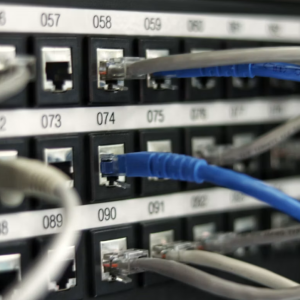
Inspecting physical Ethernet adapter connection.
2. Preliminary Triage: Physical Connection and Power Cycling
Before modifying operating system registry configurations, eliminate basic hardware and power delivery faults:
-
Verify Link Indicator Lights: Inspect the physical RJ-45 port on the back of your PC or USB-C hub. The amber or green LED should stay solid to indicate a physical carrier link, while a second LED blinks to show packet activity. If both lights remain unlit, the issue is a damaged cable, bent connector pins, or an unpowered router LAN port.
-
Execute a 30-Second Hardware Power Cycle: Consumer router DHCP assignment tables can lock up after weeks of uptime. Unplug the AC power adapter from your router and modem, wait 30 seconds to fully discharge internal capacitors, and plug it back in. Allow 2 to 3 minutes for routing tables to initialize before testing your PC.
-
Test an Alternate Switch Port or Cable: Category 5e and Category 6 cables with broken plastic latch tabs can shift slightly in the socket, causing intermittent pin contact that breaks DHCP packet handshakes.
3. Method 1: Releasing and Renewing IP Leases via Command Prompt
Flushing your operating system’s local network stack clears broken lease assignments and forces a complete DHCP handshake from scratch.
Step-by-Step Command Execution
-
Press
Win + S, typecmd, right-click Command Prompt, and select Run as administrator. -
Type the following command sequence, pressing Enter after each line:
DOSipconfig /release ipconfig /flushdns ipconfig /renew -
Verification: When
ipconfig /renewfinishes, examine the IPv4 Address line. If it displays an address matching your router’s subnet (such as192.168.1.Xor192.168.0.X), your connection is fully restored. If it returns an address starting with169.254.X.X, DHCP resolution is still blocked.
Resetting Winsock and the TCP/IP Stack
If renewing the IP lease fails, reset the underlying Windows socket catalog and IP routing engine:
netsh winsock reset
netsh int ip reset
Restart your computer immediately to reinitialize the network driver stack.
4. Method 2: Manually Assigning a Static IP Address
When a router’s DHCP server refuses to assign dynamic addresses to a specific network interface card, bypassing DHCP with a static IP configuration establishes a reliable link:
| Network Parameter | Example Configuration (Subnet A) | Example Configuration (Subnet B) |
| IP Address | 192.168.1.185 (Choose outside DHCP range) |
192.168.0.185 |
| Subnet Mask | 255.255.255.0 |
255.255.255.0 |
| Default Gateway | 192.168.1.1 (Router local IP) |
192.168.0.1 |
| Preferred DNS Server | 1.1.1.1 (Cloudflare) |
8.8.8.8 (Google) |
| Alternate DNS Server | 8.8.8.8 (Google) |
1.0.0.1 (Cloudflare) |
-
Press
Win + R, typencpa.cpl, and hit Enter to access Network Connections. -
Right-click your Ethernet adapter and choose Properties.
-
Select Internet Protocol Version 4 (TCP/IPv4) and click Properties.
-
Choose the radio button: Use the following IP address.
-
Input the IP values matching your local router’s gateway subnet (as shown in the table above).
-
Click OK on both dialog windows. The network adapter will immediately rebind using your defined parameters, bypassing DHCP lookup delays entirely.
5. Method 3: Reinstalling Network Adapter Drivers
Corrupted or outdated Ethernet controller drivers (especially Realtek PCIe GbE or Intel I225-V/I226-V series) frequently trigger sleep-wake connection drops and IP binding errors:
-
Press
Win + Xand launch Device Manager. -
Expand the Network adapters section.
-
Locate your primary Ethernet controller (e.g., Intel Ethernet Connection I219-V or Realtek Gaming 2.5GbE Family Controller).
-
Right-click the controller and select Uninstall device.
-
Check the option: Attempt to remove the driver for this device if prompted, then click Uninstall.
-
In the top application menu, click Action > Scan for hardware changes.
-
Windows will automatically redetect the network interface card and reinstall a clean native driver package.
6. Method 4: Performing a Complete Windows Network Reset
If third-party virtualization software, VPN TAP adapters, or security suites have modified low-level packet filtering rules, performing a full Network Reset restores all network components to original factory defaults.
-
Open Settings by pressing
Win + I. -
Navigate to Network & internet > Advanced network settings.
-
Scroll down and click Network reset.
-
Click the Reset now button and confirm with Yes.
-
Windows will schedule a system restart in 5 minutes. Save any open work and restart the PC manually.
Performing a network reset reinstalls all physical network adapters and purges third-party virtual filters, providing a clean slate for wired networking.
7. Disabling Energy Efficient Ethernet (EEE) and Green Ethernet
Modern network cards feature power-saving states that put the physical transceiver to sleep during low-traffic periods, often failing to re-negotiate IP addresses upon wake:
-
Open
ncpa.cpl, right-click Ethernet > Properties > Configure. -
Switch to the Advanced tab.
-
Locate and disable these power-saving toggles:
-
Energy Efficient Ethernet (EEE): Set to Disabled.
-
Green Ethernet: Set to Disabled.
-
Gigabit Lite: Set to Disabled.
-
-
Navigate to the Power Management tab and uncheck Allow the computer to turn off this device to save power.
Flushing system socket caches, configuring static IP parameters, updating controller drivers, and disabling aggressive sleep modes resolves invalid IP configuration errors, ensuring reliable, low-latency wired Ethernet connectivity across your workstation.